Some testers told me that after they installed recent Windows updates, particularly KB5065789, the Compare info for both files button stopped working.
What is “Compare info for both files”?
Compare info for both files is a contextual conflict-resolution feature in the Windows File Explorer. The option shows up when you copy or move a file or multiple files to a destination that contains a file with the same name.
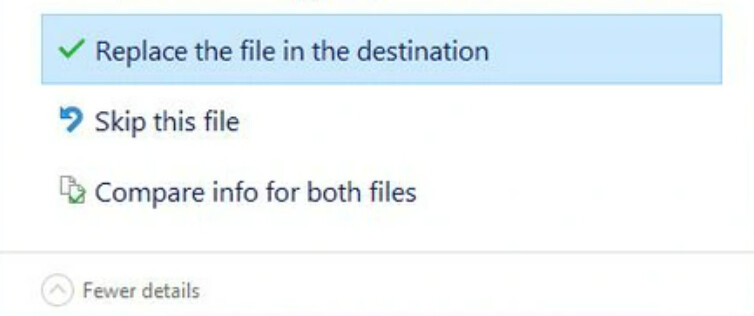
The feature allows you to manually compare the source file and the destination file before you want to replace the latter, skip moving or copying, or to keep them both.
The dialogue box also includes the “Replace the file in the destination” option, which you can choose if you do not want the file in the destination, and selecting it would, of course, delete the file. The “Skip this file” option would simply avoid copying or moving the source file to the destination folder.
But if you want to check the file properties to decide which one to keep, you’ll need the “Compare info for both files” feature.
When you click the “Compare info for both files” option while pasting a file into a destination folder that contains a file with the same name, a side-by-side comparison window opens, asking which files you want to keep.
There are check boxes that allow you to choose the files from the source folder or the destination folder, or both.
If you choose the file from the source folder, it will replace the file in the destination folder, and if you choose the check box with the Files already in the destination folder option, it will skip the Copy or Move action.
Selecting both the check boxes and clicking Continue will add the source file to the destination with a new name. It’s actually the same name with a “(n)” added at the end of the name, where “n” is the number of times the file has been copied or moved.
You can make an informed decision from the comparison window, as it shows the Date and Time when each file was created, and also has the File size as well. This proved very useful while I was copying and moving edited photos, which had similar names to the raw photos.
The window also shows previews of both files, but not all files are supported, and the previews for images are too small for my liking. Also, it’s in the legacy design with the white background, despite my system using dark more, but we expect that to change soon.
Windows 11 KB5065789 or newer updates broke the button for some users
In Build 26200.6725, or newer, “Compare info for both files” button does nothing. It won’t show the second pop-up that actually compares the two files.
There’s also a Feedback Hub post on the topic, and Microsoft is likely aware of it already.
But if you’re affected, try removing KB5065789 and directly installing Windows 11 October 2025 Update.
Do you have other issues after recent updates? Let me know in the comments below.